Search This Blog

Monday, 9 September 2013

Step by Step Installation of Oracle 11g 64bit in Windows7 64bit

This Post will give you step by step information of Oracle database 11g 64 bit version installation in windows 7 64 machine. If you prefer with Oracle Database 11g installation in Windows 64bit machine, This post will help you to move forward.

Prerequisites Checks:
Requirement Minimum Value
Physical memory (RAM) 1 GB minimum
On Windows 7 and Windows 8, 2 GB minimum
Virtual memory
  • If physical memory is between 2 GB and 16 GB, then set virtual memory to 1 times the size of the RAM
  • If physical memory is more than 16 GB, then set virtual memory to 16 GB
Disk space Total: 5.39 GB
Processor Type AMD64, or Intel Extended memory (EM64T)
Video adapter 256 colors
Screen Resolution 1024 X 768 minimum

Download oracle Database from oracle site and unarchive the zipped download file.

Step1: 
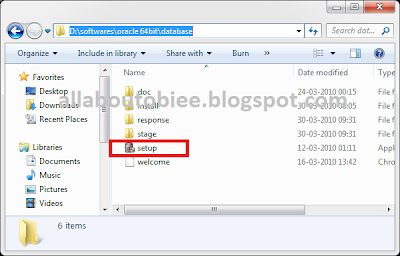
Just double click on setup.exe from the unarchived folder of oracle database source.
Step2:
Oracle Universal Installer will check the disk space and initiates the installation
Step3:
If you have a oracle metalink ID then type your email and oracle support password in the provided space with the below screen. Otherwise uncheck the 'I wish to receive security updates via My Oracle Support' option.
Once we unchecked the option with the above screen we will get a popup like below screen. just Click 'Yes' with this popup window and Click 'Next' with above screen
Step4:
If we are installing oracle database in our machine first time then go ahead with first option 'Create and Configure a database' with the below screen. If not, select appropriate option which you want and then click 'Next'
Step5:
Select 'Server Class' to install of full feature of oracle database 11g 64 bit and click 'Next' with below screen
Step6:
As we are not going to install in cluster database, select 'Single Instance database installation' and then click 'Next' with the below screen
Step7:
Select 'Typical Install' and then click 'Next'
Step8:
It will automatically select drive and folder to install database. If you want to change the installation folder you can browse the custom folder you have been created
This screen will ask some more details:
Global Database Name: ORCL (if we want to change it we could name which we want)
Type administrator password and keep remember the password. because this password will help us to login into database with the user sys and system.

and then click 'Next'
Step9:
This steps checks all the prerequisites such as disk space, memory, environmental variable and so on, so once it is done we will get next screen automatically
Step10: 
This summary steps gives us the option 'Save Response File' to store all installation related folder information in a text file.
Just click 'Finish' with this step to initiate the product installation
Step11:
The next few screen will show the progress of oracle database installation such as installation preparation, copying folder to the target folder and setup files

At any of of point if windows security comes like below screen just click 'Allow Access' to continue the installation

After the automatic file copy and configuration it will start creating and configuring some of the default database schema and users automatically
In Database configuration Assistant select 'Password Management'
uncheck 'Lock Account?' column for the users to you want unlock and set the  password. Here I have unlocked the users HR, SH and OE will help us in future to do some sample work with OBIEE and then click 'OK' with the below and above screen.
Step12:
with above steps the installation  and configuration comes to end. So Just click 'Close' with the below screen to complete the installation.

Happy Blogging!!!
Bose

Thursday, 5 September 2013

ORACLE BASIC Developer & DBA COMMANDS

After DB installation Ensure the following services are running.
1. Oracle service<Instance Name>
2. Oracle listener service

Goto sqlplus enter userid/pwd or userid/pwd@service_name
If the username and pwd is correct, we would be logged into the oracle and will get the SQL Prompt
SQL>

To Create Table Space:
Create a folder in local drive like BOSE_DBF
SQL> CREATE TABLESPACE KK DATAFILE 'E:\BOSE_DBF\BOSE.DBF' SIZE 50M;
Tablespace created.

To Increase the Tablespace Size:
• Increasing the Existing Datafile

SQL> ALTER DATABASE DATAFILE 'E:\BOSE_DBF\BOSE.DBF' RESIZE 100M;
Database altered.

Appending additional DATA file to the Tablespace

SQL> alter tablespace kk add datafile 'e:\bose_dbf\bose1.dbf' size 20M;
Tablespace altered.


To create DB user:
SQL> create user <username> identified by <password> default tablespace <Tablespace Name>
Temporary tablespace <Temporary tablespace name>;

SQL> create user bose identified by bose default tablespace bose temporary tablespace temp;
User created.


SQL> show user;
USER is "SYS"

Granting Access to the USER:
SQL> grant create session,imp_full_database to <user name>
SQL> grant create session,imp_full_database to bose;
Grant succeeded.

Granting DBA Access to the USER:
SQL> grant dba to user
SQL> grant dba to bose;
Grant Succeeded

Altering USER:
SQL> alter user bose quota unlimited on <username>;
SQL> alter user bose quota unlimited on bose;
User altered.

Now we will exit from the sys user and will connect our newly created to user to import or export the db objects

SQL>conn bose/bose

Syntax for Import:
• C:\>imp <username>/<password> file=<dumpname.dmp> log=<logfilename.log> full=y
C:\>imp bose/bose file=bose.dmp log=boseimp.log full=y

• C:\>imp <username>/<password> file=<dumpname.dmp> log=<logfilename.log> fromuser=<fromusername> touser=<tousername>

• Before import we need to check the tablespace free space.
SYSTEM -200M
INDX -100M
DEFAULT TABLESPACE (BOSE) 

C:\>imp bose/bose file=bose.dmp log=boseimp.log fromuser=hr touser=bose
Import completed successfully with warnings.

After Import Connect to the Respective DB user
C:\>sqlplus

Enter username: bose/bose

SQL>@c:\compile – it will compile all the Invalid objects run the compile script atlease 4 times.

Exporting DB user:
Syntax:
C:\> exp <username>/<password> file=<filename.dmp> log=<logname.log>
C:\>exp bose/bose file=bose.dmp log=kk.log
.
.
Export terminated successfully without warnings.

Taking full DB Export:
 C:\>exp system/<system pwd> file=<filename.dmp log=logfile.log full=y
C :\> exp system/system file=fulldump.dmp log=fulldump.log full=y

To drop DB user:
SQL> drop user kk cascade;
              User dropped.

To drop DB user object:
Connect to specified Database
SQL> CONN bose/bose
SQL> SHOW USER
BOSE
SQL>@C:\drop.sql
To Drop Tablespace:
SQL> drop tablespace bose including contents;
Tablespace dropped.

SQL> select username from dba_users:
It will display all the username in the DB

SQL> select name from v$database;
NAME
ORCL
It will display the DB name

SQL> select count(*) from user_objects;
           It will display the number of objects in that schema.

Cheers!
Bose

Sunday, 1 September 2013

Step by Step installation of Oracle Client in Windows 7

I am giving here the complete step by step installation of  Oracle Client 32bit installation in Windows7 64 bit machine environment. If you are planning to install oracle client in windows machine this post will help you install completely.

Step 1: 
Download oracle client software from oracle site and unarchive the zip file and click on setup.exe from the unarchived client folder

Step 2: 
Oracle Universal Installer starts to initiate the installation with the below screen
Step 3:
Actually from here actual only actual installation steps begins. Select the type as per your needs. Here I am having the master database installed in another machine in the network so going with 'Administrator' installation to have a complete installation and features of Oracle Client
Step 4:
Select the languages support you need to be have with this installation. Here I have selected all the languages.
Step 5: 
This step is an important step in Oracle Client Installation. If you are having database installed already in the machine and if you are installing oracle Client also on the same machine then It will select the same path where database is installed automatically.

I suggest always to create a separate folder and Install it in separate place to differentiate database and client easily.
Step 6:
once you clicked with 'Next' button with above screen, we will get the below screen. With this screen we have the button 'Save Response File' to save the installation details in a file and then Click 'Finish'
Step 7:
Once we clicked 'Finish' with above screen installation of client starts and It takes a while to install all the necessary files and details in folder.
Step 8:
After successful completion of installation we will be getting below screen. Just click 'Close' to complete installation.

Happy Blogging!!!
Bose

Wednesday, 14 August 2013

Right Click Problem "Creating New Data Server in ODI 11g"

I have installed Oracle Data Integrator 11g (ODI 11.1.1.7.0) successfully my laptop. But I couldn't create New Data Server for my new project. So here is the problem and solution.

Problem:
when we are trying to create New Data Server on right clicking in Physical Architecture in Topology Manager, We may be surprised because It doesn't respond and problem looks very odd.

Solution:
The solution is simple but weird, Refer Step1 and step2 for the solution below:

Step1:

Open ODI Studio -> Select 'Topology Manager' -> Expand Physical Architecture and select the database type which you want to create new data server

Instead of right clicking on "Oracle", Just click on the "+" symbol which is used to to expand the database type. ( For your reference, I have indicated in the red box in the above screenshot)
                                 
Step2:
After clicking on the "+" symbol, we will get the right click option to create 'New Data Server".
           
 Simple!!! Isn't it??!!

Cheers!
Bose

Tuesday, 13 August 2013

Connecting Essbase with OBIEE 11g - A Complete Step by Step Guide

This post is containing a PDF document which best describes how to create an Essbase Cube that we could use for OBIEE Report.

This simple step by step explanation guide will help us to create the Essbase Cube, Importing the cube in OBIEE Administration Tool and creating the report based on the Base.

To download the document click here

Hope it helps!

Cheers!
Bose

Sunday, 14 April 2013

Types of Hierarchies in OBIEE 11g

OBIEE supports various kinds of hierarchies. OBIEE 10g support Level-based, value-based hierarchies but OBIEE 11g supports two more hierarchies. Here is the definition for that
Level-based Consists of one or more levels. For example, a Time hierarchy might have levels for Year, Quarter, and Month.
Value-based Consists of values that define the hierarchy, rather than levels. For example, an Employee hierarchy might have no levels, but instead have names of employees who are managed by other employees. Employees can have titles, such as Vice President. Vice Presidents might report to other Vice Presidents and different Vice Presidents can be at different depths in the hierarchy.
Ragged A hierarchy in which all the lower-level members do not have the same depth. For example, a Time hierarchy might have data for the current month at the day level, the previous month’s data at the month level, and the previous 5 years’ data at the quarter level. This is also known as an unbalanced hierarchy.
Skip-level A hierarchy in which certain members do not have values for certain higher levels. For example, in the United States, the city of Washington in the District of Columbia does not belong to a state. The expectation is that users can still navigate from the country level (United States) to Washington and below without the need for a state.

Wednesday, 13 February 2013

Data Warehousing Objects and its Definitions


Fact tables and dimension tables are the two types of objects commonly used in dimensional data warehouse schemas.

Fact tables are the large tables in your data warehouse schema that store business measurements. Fact tables typically contain facts and foreign keys to the dimension tables. Fact tables represent data, usually numeric and additive, that can be analyzed and examined. Examples include Sales, Cost and Profit.

Dimension tables, also known as lookup or reference tables, contain the relatively static data in the data warehouse. Dimension tables store the information you normally use to contain queries. Dimension tables are usually textual and descriptive and you can use them as the row headers of the result set. Examples are Customers or Products

Fact Table:
A fact table typically has two types of columns: those that contain numeric facts (often called measurements), and those that are foreign keys to dimension tables. A fact table contains either detail-level facts or facts that have been aggregated. Fact tables that contain aggregated facts are often called summary tables. A fact table usually contains facts with the same level of aggregation.

Fact tables are summarized into three types:
1   .   Additive
2   .   Semi-Additive
3   .   Non-Additive
Additive facts can be aggregated by simple arithmetical addition. A common example of this is sales.Semi-additive facts can be aggregated along some of the dimensions and not along others. An example of this is inventory levels, where you cannot tell what a level means simply by looking at it. Non-additive facts cannot be added at all. An example of this is averages.

Requirements of Fact Table:
You must define a fact table for each star schema. From a modeling standpoint, the primary key of the fact table is usually a composite key that is made up of all of its foreign keys.

Dimension Table:
A dimension is a structure, often composed of one or more hierarchies, that categorizes data. Dimensional attributes help to describe the dimensional value. They are normally descriptive, textual values. Several distinct dimensions, combined with facts, enable you to answer business questions. Commonly used dimensions are customers, products, and time.
Dimension data is typically collected at the lowest level of detail and then aggregated into higher level totals that are more useful for analysis. These natural rollups or aggregations within a dimension table are called hierarchies.

Commonly dimension tables are categorized into three types:
1      Conformed dimension
2      Degenerated dimension
3.   Junk dimension

If we are saying in simple word, Conformed dimension table is a table which is having at least one or multiple primary key or unique key to join with one or multiple fact table. For example product table is related with the sales fact table
A conformed dimension is a set of data attributes that have been physically implemented in multiple database tables using the same structure, attributes, domain values, definitions and concepts in each implementation. A conformed dimension cuts across many facts.
Dimensions are conformed when they are either exactly the same (including keys) or one is a perfect subset of the other. Most important, the row headers produced in the answer sets from two different conformed dimensions must be able to match perfectly.
A junk dimension is a convenient grouping of typically low-cardinality flags and indicators. By creating an abstract dimension, these flags and indicators are removed from the fact table while placing them into a useful dimensional framework.
A Junk Dimension is a dimension table consisting of attributes that do not belong in the fact table or in any of the existing dimension tables. The nature of these attributes is usually text or various flags, e.g. non-generic comments or just simple yes/no or true/false indicators. These kinds of attributes are typically remaining when all the obvious dimensions in the business process have been identified and thus the designer is faced with the challenge of where to put these attributes that do not belong in the other dimensions.
One solution is to create a new dimension for each of the remaining attributes, but due to their nature, it could be necessary to create a vast number of new dimensions resulting in a fact table with a very large number of foreign keys. The designer could also decide to leave the remaining attributes in the fact table but this could make the row length of the table unnecessarily large if, for example, the attributes is a long text string.
Refer Ralph Kimball’s explanation about Junk Dimension
Hierarchies
Hierarchies are logical structures that use ordered levels as a means of organizing data. A hierarchy can be used to define data aggregation. For example, in a time dimension, a hierarchy might aggregate data from the month level to the quarter level to the year level. A hierarchy can also be used to define a navigational drill path and to establish a family structure.

Within a hierarchy, each level is logically connected to the levels above and below it. Data values at lower levels aggregate into the data values at higher levels. A dimension can be composed of more than one hierarchy. For example, in the product dimension, there might be two hierarchies—one for product categories and one for product suppliers.

Dimension hierarchies also group levels from general to granular. Query tools use hierarchies to enable you to drill down into your data to view different levels of granularity. This is one of the key benefits of a data warehouse.
When designing hierarchies, you must consider the relationships in business structures. For example, a divisional multilevel sales organization.Hierarchies impose a family structure on dimension values. For a particular level value, a value at the next higher level is its parent, and values at the next lower level are its children. These familial relationships enable analysts to access data quickly.

Levels
A level represents a position in a hierarchy. For example, a time dimension might have a hierarchy that represents data at the month, quarter, and year levels. Levels range from general to specific, with the root level as the highest or most general level. The levels in a dimension are organized into one or more hierarchies.

Level Relationships
Level relationships specify top-to-bottom ordering of levels from most general (the root) to most specific information. They define the parent-child relationship between the levels in a hierarchy.
Hierarchies are also essential components in enabling more complex rewrites. For example, the database can aggregate an existing sales revenue on a quarterly base to a yearly aggregation when the dimensional dependencies between quarter and year are known.

What is Oracle Database Link and How to create database link (DB Link)

 https://www.oracletutorial.com/oracle-administration/oracle-create-database-link/

Recent Posts