Search This Blog

Wednesday, 7 March 2012

Using Timestamp

Recently I have come through an business requirement that I have to calculate the number of days from the column 'Document Date' by comparing with current date to find out the ageing period of a customer.
I'm sharing the solution which I have find out using timestamp function in OBIEE BMM Layer.
I hope this may be helpful.
I have created the column called 'DayDiff' in BMM layer with the function timestampiff shown in the below picture:


I have used the same column when we were created the saved request which exactly giving the total number days by comparing two date columns.


Happy blogging!!
Bose

Enabling Cache

Cache management is one of the important topic in OBIEE 10g. Enabling cache will increase your BI System performance how because whenever the user is accessing the saved request in dashboard the query hit first the cache file. If it is available, it will take the result and will the report on dashboard. so hitting database and fetching the result set time is saved.


If you want to enable the cache for the whole Metadata (.rpd) file go to instanceconfig.ini file which available basically in the folder Drive:OracleBI\Server\Config\instanceconfig.ini and set the parameter 'YES'.


Once the cache enabled the query get cached whenever someone is accessing dashboard.
You can verify this in Administration tool.
Open Administration Tool -> Go to Manage -> Select Cache
It will open the cache Manager window. There you can view all the cached query.


Enabling Cache by Table wise:
-----------------------------------------------------------
We can enable or disable the cache once  you imported the table in the physical layer of the repository.
By default all the physical layer tables are cacheable.
If you want to disable the cache for a particular table or want to enable the cache in regular interval of time you can user physical table properties tables option shown below:


Enabling change password in OBIEE 11g

To enable the 'Change password' option in OBIEE 11g, Please click the below heading which will redirect to the site which is having the information related to this Option.
Changing Password in OBIEE 11g
(or) 
Copy the below link and paste in your browser address bar:
http://www.rittmanmead.com/2011/10/changing-your-password-in-obiee-11g/

Tuesday, 6 March 2012

Enabling change password in OBIEE 10g

While we are working on the OBIEE, there is specific requrement that we have to enable the "Change Password " Option in My account of every user in the presentation Services. So that Each User who is accessing the dashboard can change their password when they required.


To enable this option we have to do a small workaround.


Go the OBIEE Installed BI folder and open the Controlmessages.xml. In my case the path is like below:


    C:\OracleBI\web\msgdb\messages\controlmessages.xml


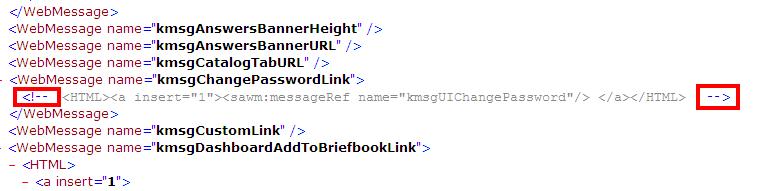
Once you opened the file, you will get the message like below picture.


Just remove the command tag which indicated in the red rectangle in the screen shot to enable the 'Change Password' Option and save the file and restart the Oracle Java Host, Oracle BI Server and Oracle BI Presentation Server.
Now you login to presentation services and Go to My Account. You can see the 'Change Password' option available there. By clicking that we can change the password. 


Happy Blogging,
Bose

OBIEE Best Practices in Presentation Layer

 1. Catalog should map to one Business Model & Mapping Layer (BMM) Layer objects only.
 2. Use Parent Folders and Sub folders to group Facts and similar Dimensions together.
 3. Avoid the use of Aliases when a new Presentation Column is created.
 4. The Presentation Columns in a table should be sorted alphabetically if no specific order is 
     asked by the customer.
 5. Get Customer Sign-off of the Presentation layer structure before building reports. This 
       will avoid later replacements of columns which affects the reports constructed.
 6. Make proper use of the Permissions in this layer
 7. Don’t use Double quotes (“) in Column name, though its permitted
 8. Presentation columns should not have the same name as Presentation Table.
 9. Eliminate unneeded objects to reduce user confusion
10. Limit Number of objects in folder to 7-12
11. Use Object  description field to convey information to users when they hover the mouse 
      in Answers on a Presentation column.
12. Keep names short to have space on reports
13. Give the meaning table names and columns names to identify easily on subject areas
14. Try to create separate folder for each data mart (HR, Operation, SCM, sales) if it is coming 
      from same Business Model & Mapping Layer.
15. Remove primary key columns and other unnecessary columns that doesn't going to use in 
      the creation of the reports.

OBIEE Best Practices in BMM Layer

1. Minimize the use of Snow-Flakes. Always go for Star Schema's.

2. Always use Complex joins here. It allows OBI Server to make best decision about the exact physical SQL to be generated based on Logical query Path. In contrast to a Physical FK join, these forces a single join path between tables. If joined tables were dragged from Physical Layer, replace FK Joins with complex Joins.

3. Create Dimension Hierarchies for every Dimension in the Business Model

4. Even if a meaningful hierarchy definition cannot be thought of, just create one with the Grand Total Level and Detail Level.

5. For Dimension Hierarchies the ‘Number of Elements at this level’ should increase        from 1 at Grand Total to the corresponding distinct values at each level. This can be approximate values; need not be the exact ones.

6. Define Keys at each level of the Hierarchy.

7. The Content tab of each of the LTSs in Fact should be set to the related Dimension’s Logical Level.

8. Combine all attributes that describe a single entity into a single Logical table.

9. Never delete logical columns that map to keys of Physical dimension tables.

10. Don’t keep unwanted Physical columns in the Logical Layer.

11. Give Meaningful Names to the Logical Columns. Avoid assigning a logical column the same name as a logical table or Business Model object.

12. Make proper use of the where clause Content filter of the LTS to minimize number of records returned.

13. Minimize the use of Conditional Checks and ‘CASE WHEN’ usage in the formula of Logical Columns. This will affect performance. Instead make proper use of the where clause Content filter of the LTS if the condition applies to all the columns/measures in the logical table

14. When Creating a logical column based on other logical columns , make sure all the columns in the expression is from the Same logical table, same Logical Table Source.

15. Make proper distinction between Count and Count Distinct. If you are counting on a unique value column don’t use Count Distinct. This will affect performance

16. Minimize the use of Outer joins within LTS. This is resource consuming. Use default zero ROW_WID records at the database instead.

17. Make sure a particular Report only refers one LTS in a Logical Table. Or the different LTSs should be at the same level

18. Avoid dimensions in Fact tables and avoid measures in Dimension Tables

19. Create Display folders to group tables according to STAR or Releases

20. When using Out-of-the -Box Vanilla RPD, remove unwanted Logical Tables and Hierarchies. This will minimize the time needed for Consistency Check

21. Specify the most Economical Source when there are multiple LTSs for a Dimension

22. Whenever you do Consistency Check, Right Click the Changed Business Model Object and go for Check Consistency rather than using the Global Consistency Check. This will minimize the time needed for Consistency Check

23. Arrange the logical columns alphabetically. This will save time when you revisit.
24. Fix the warnings if any, don’t ignore it

Happy Blogging,
Bose

OBIEE Best Practices in Physical Layer

In this post I am sharing some of the best practices to follow while we are in OBIEE solutions. 

1. Try to always import tables and columns into Physical layer rather than creating it 
    manually

2. This will ensure correct data types are set for each column. This is particularly useful 
    when there is confusion between DATE and DATETIME.

3. For each Physical Dimension table there should be a Primary Key and only one. For Fact 
    Tables, there is no need to create a Primary Key.

4. If only composite key is present create a single Physical key and add all the composite 
    key columns in it.

5. Minimize Opaque Views (SELECT statements) in Physical Layer.

6. Create Tables (recommended) or  Materialized views in data-warehouse instead

7. Always use Foreign Key Joins in the Physical layer. Avoid using complex joins with 
    conditions.  Complex joins are not good for performance and should be avoided. (there 
    are a few exceptions for this case when we work with Type 2 SCD)

8. Always try to use Number-Number join. This will work faster than a varchar-varchar join.

9. Avoid using CAST functions in the join expression. This will destroy the usability of the 
    Database indexes created on that column.

10. Avoid any filter conditions in the Join.

11. These filter conditions can in turn be added in the LTS (Logical Table Source) ‘Where’ 
      clause content filter or as request filter in Reports

12. Facts should not be joined . This will result in Cartesian Product leading to double 
      counting and summing.

13. Use conforming Dimensions instead

14. Connection Pool considerations (15-18)

15. Require fully qualified table names should be unchecked

16. Enable Connection Pooling should be checked

17. Execute queries asynchronously should be checked

18. Create a separate Connection Pool for Initialization Blocks

19. Keep Cache persistence time of all tables as Infinite

20. The columns used in Joins should be set to “NOT NULL”

21. The database Features tab should be set correctly with the Parameters supported by 
      your backend database.

22. If both are not in-sync then lot of processing will be done in the BI Server instead of the 
     Database. This affects Performance. Pay particular attention to Locale. (They are case-
     sensitive).Mismatch of Locale can cause the sorting to be done in OBI Server instead of 
      DB and performance take a bad hit !

23. DERIVED_TABLES_SUPPORTED in database features tab should be  checked for Oracle 
      Databases. This will ensure that Proper function shipping will happen to the DB in case 
      of TOP(N) and Rank functions

24. Create Display folders to group tables according to STAR or Releases

25. Set Different Icons on objects for each Release of the Code. This will ensure in finding 
      which entity was added in which release

26. Don’t Leave the Description field empty. Write some meaningful descriptions of the 
      object. This will help a lot in later trouble-shooting and Impact Analysis


Happy Blogging,
Bose

What is Oracle Database Link and How to create database link (DB Link)

 https://www.oracletutorial.com/oracle-administration/oracle-create-database-link/

Recent Posts